Loading

Image plus reference motion

Photo to Dance Video

Turn an authorized photo into an AI dance video by pairing it with a clear dance reference. Upload one visible subject, choose the movement you want, and create a short clip for TikTok, Instagram Reels, or YouTube Shorts.

Create Your AI Dance Video

Upload a full-body photo, choose a dance template, and generate a short AI dance video.

3 to 20 seconds

5s video · minimum 5s billing

Live preview
Standard

What Is a Photo to Dance Video?

A photo to dance video is a short animation that makes the subject in a still image follow movement from a dance reference. Your photo supplies the person, character, mascot, or artwork. The reference video supplies the timing, poses, arm movement, footwork, and direction of the performance.

This workflow is different from adding a zoom or bounce effect to a picture. The AI dance video generator reads movement from a video and applies that motion to the visible subject in your image. A clear full-body photo gives the system more information for leg movement, while a half-body portrait can work for gestures and upper-body routines.

You do not need to film the person in your photo performing the dance. You do need permission to use the image and the reference media. The result should also be reviewed before sharing because fast turns, cropped limbs, hidden hands, or a busy background can make individual frames less consistent.

Plan Your Photo to Dance Video

Most failed generations begin with an input mismatch. Check the photo and dance reference together before you spend credits. The subject framing should leave room for the movement shown in the reference.

Match the photo to the movement

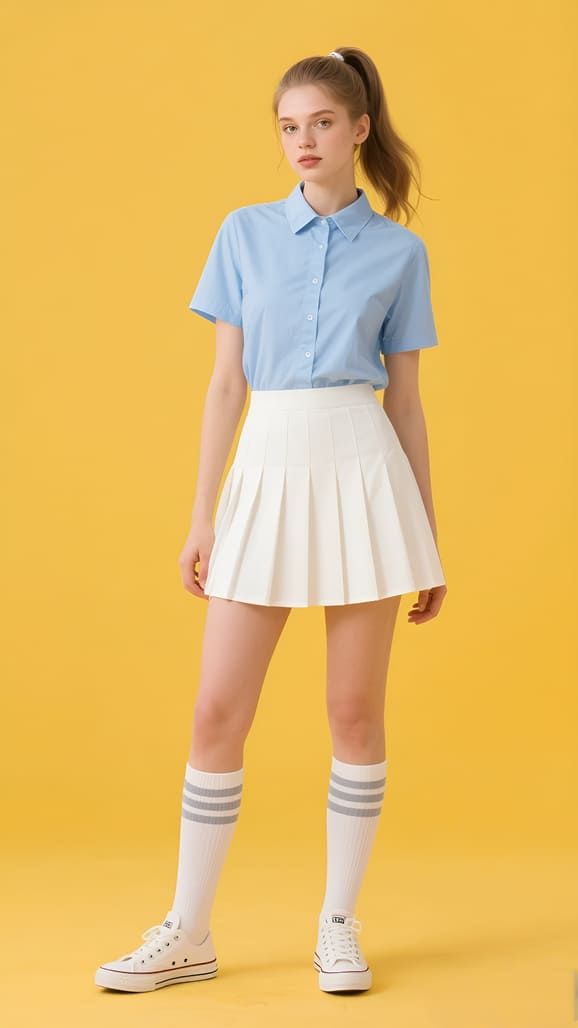
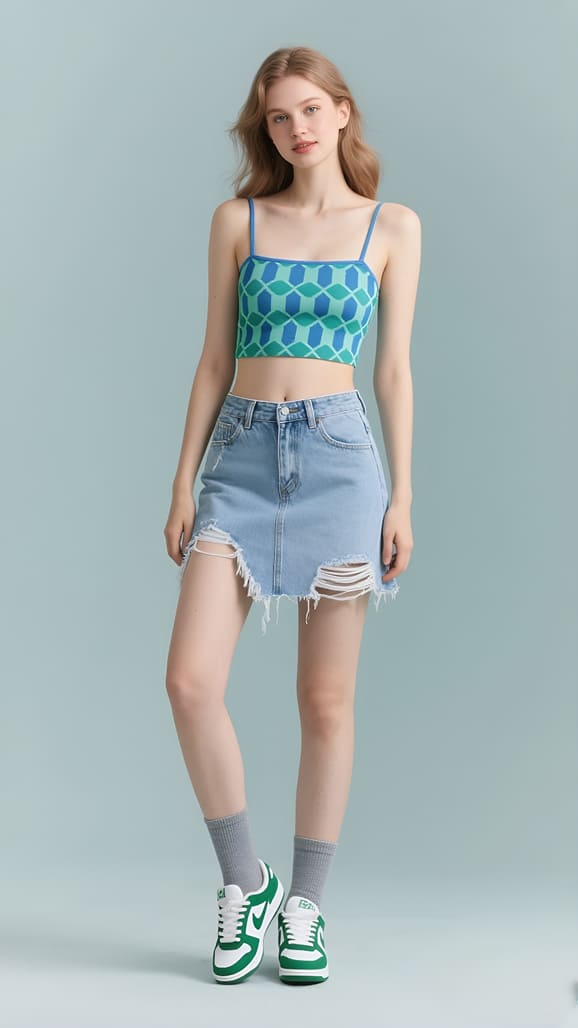
Use a standing full-body image when the reference includes steps, kicks, spins, or wide arm movement. Use an upper-body image for hand dances, head movement, and compact social gestures. If the reference moves outside the original framing, choose a wider source image.

Choose readable dance motion

Start with one dancer, steady framing, and a short routine with a visible body outline. A reference with heavy cuts, blocked limbs, multiple dancers, or rapid camera movement gives the generator less reliable motion to follow.

Keep one subject easy to identify

A single person or character with a clear silhouette is easier to animate than a crowded group. Keep the face, torso, arms, and legs visible where possible, and avoid props that hide the hands or cross the body.

Preview the complete result

Watch the generated photo dance video from beginning to end. Look at hands, feet, facial consistency, clothing edges, background changes, and sound. Generate a new version with a simpler reference if the motion becomes unclear.

How to Turn a Photo into a Dance Video

The creation panel keeps the complete photo to dance video workflow in one place. Prepare the image first, then add the movement reference and choose the output model.

  1. 01

    Upload an authorized photo

    Choose a JPG, PNG, or WEBP image that you own or have permission to use.

    Choose a JPG, PNG, or WEBP image that you own or have permission to use. For full-body dance motion, keep the entire subject visible from head to feet. Use the sample images if you want to understand the recommended framing before uploading your own file.

  2. 02

    Add a dance reference

    Select a built-in dance sample or upload a short MP4 or MOV file.

    Select a built-in dance sample or upload a short MP4 or MOV file. The reference determines the movement, timing, and original sound. A direct, steady recording usually gives a clearer motion path than a montage with frequent cuts.

  3. 03

    Choose generation settings

    Select Standard or Pro and review the credit estimate before generating.

    Select Standard or Pro and review the credit estimate before generating. The estimate is based on the reference duration, with minimum billing applied to very short clips. The original reference sound remains enabled in the current workflow.

  4. 04

    Generate and review the clip

    Start the generation after both inputs are ready.

    Start the generation after both inputs are ready. Processing can take several minutes. When the result appears, play the whole clip and check whether the subject follows the intended dance without distracting image errors.

  5. 05

    Download for your channel

    Save the result after you approve it.

    Save the result after you approve it. If you plan to publish on a vertical feed, begin with a vertical photo and reference so the subject has enough room in a 9:16 frame. Add licensed music inside the destination platform when needed.

Photos That Produce Clearer Dance Motion

The source photo is the identity and visual anchor of the video. A useful image does not need studio equipment, but it should make the subject easy to separate from the background. The right framing also depends on the dance you selected.

Use a photo with

  • One clear subject with a visible face and body outline.
  • Even lighting with enough contrast between subject and background.
  • Full-body framing for footwork, steps, and wide movement.
  • Half-body framing for gestures, memes, and compact routines.
  • A simple pose with arms and legs separated where possible.

Avoid photos with

  • Multiple people when the reference is designed for one dancer.
  • Cropped feet, hidden hands, or clothing that blends into the background.
  • Heavy blur, low light, strong shadows, or a very small subject.
  • Props, furniture, or other objects covering moving body areas.
  • Images of real people that you do not have permission to animate.

Diagnose Photo to Dance Video Problems

When a result looks wrong, change the input that caused the problem instead of repeating the same generation. The visible artifact usually points to a framing, pose, lighting, or motion-reference mismatch.

Identity drift or changing facial details

Use a larger, sharper source image with even light and a face that is not hidden by hair, hands, or props. Reduce rapid turns and extreme head movement in the reference. If the subject changes only during a specific pose, choose a reference with a more compatible camera angle.

Review video credits

Broken limbs, cropped feet, or unstable edges

Check whether every moving body area exists in the original photo. Footwork needs visible feet and floor space; wide gestures need room beside the arms. Smearing around clothing or hands often improves when the background has stronger contrast and the reference contains fewer occlusions.

Keep Source Permission with the Project

Keep a record of where the source photo and motion reference came from, who supplied them, and what use was authorized. A file being publicly visible does not make it free to animate, remix, or publish. This provenance is especially important for client work, characters, logos, and branded assets.

Do not present synthetic movement as proof that a real person performed or approved a dance. Review every frame before delivery, remove misleading or unsafe results, and keep music clearance separate from permission to use the visual reference.

From One Photo to Moving Video

Match the visible body area in your source photo to the movement in the reference. A compatible pair gives the motion more useful visual information.

Source photoDance result
AI dance video result from a full-body photo
Clear full-body source photo for dance animation

Photo to Dance Video FAQ

How does a photo to dance video tool work?

A photo to dance video tool combines a still subject image with movement from a reference video. The photo supplies the appearance, while the reference supplies the dance timing and body motion used to generate the new clip.

What photo should I upload for a dance video?

Upload a clear image with one visible subject. Use a full-body photo when the dance includes leg movement and use a half-body image for compact hand or upper-body routines. Avoid blur, deep shadows, cropped limbs, and crowded scenes.

Can I turn a character or mascot photo into a dance video?

Yes, a character, mascot, or original illustration can be used when it has a readable body shape and you have the right to use it. Full-body character art generally gives the dance motion more visible areas to follow.

Can I upload my own dance reference video?

Yes. You can choose a built-in sample or upload a short MP4 or MOV dance reference. A single dancer, stable camera, and unobstructed movement usually make the reference easier to follow.

Why does the face change in a photo dance video?

Face changes are more likely when the source is small, blurred, heavily shadowed, or partly covered, and when the reference contains fast turns or extreme angles. Use a sharper source with a visible face and test a steadier motion reference.

What should I change when hands or feet look wrong?

Use a source image that clearly shows the affected limbs, leave more space around the subject, and choose a reference without occlusion or rapid cuts. Change one input at a time so you can identify which adjustment improves the output.

Turn Your Photo into a Dance Video

Choose an authorized image, pair it with a clear dance reference, and generate a short AI dance clip you can review before sharing.